FamilySearch Wiki:WikiProject New England Town Pages, Part 2
Purpose[edit | edit source]
To update the "Libraries and Historical Societies" section of each Connecticut town page.
Task List[edit | edit source]
New England Town Pages, Part 2
Instructions[edit | edit source]
- Open the task list and go to the "Part 2" section of the Google Spreadsheet.

- Place your name by the town page in the "Name" column that you would like to work on and click on the link to go to that page.
- In this section, we will be adding relevant libraries and societies for the town pages. Most of the county pages have information on the libraries and societies that we will be using. The county pages are linked on the task list as well under the "County" column. Open the county page in a new tab and scroll down to the "Societies, Libraries and Museums" section.
- Look for societies and libraries that either have your town in their name or whose address is in your town. For instance, if I were editing the Darien, Connecticut town page, I would look for societies that are in Darien or that have Darien in their title. Based on the following screenshots, I would want to copy the Darien Historical Society and the Middlesex Historical Society.
- Click on the edit source button next to the "Societies, Libraries and Museums" heading.
- Copy the code for the society or library that you want to put on the town page. For example, if I were copying the Darien Historical Society, I would highlight and copy the following:
- Go to the town page that you are working on; click on the edit source button next to the "Libraries and Historical Societies."
- Paste the code that you copied into the editing box. This step would look like the following for the Darien Historical Society:
- Repeat the process until you have all the societies and libraries that you need from the county page on your town page.
- Press "Show preview" to make sure that all of the code is correct, and if everything looks right proceed to the next step. If something looks amiss, fix the code before moving forward.
- Type "Updating Libraries and Historical Societies" into the Summary box and press "Save changes."
- If there were no Historical Societies or Museums for your town, open a new tab, go to Google and type the following: TOWN historical society, but replacing TOWN with your town name. It is unlikely that you'll find anything
- If, however, you do find a society that was not listed on the county page go to their website and find the following information:
- Society's address
- Society's phone number
- Society's contact email
- Society's website
- Go back to the town page and click on the "Edit Source" button next to "Libraries and Historical Societies."
- Enter the information that you got from the library's website in the following way:
'''NAME OF SOCIETY'''<br>SOCIETY STREET ADDRESS<br>TOWN, CT ZIP CODE<br>TELEPHONE NUMBER<br> Email: [mailto:societyemail societyemail]<br>[societyurl Website]
- Once you have added your society to the town page, click "Show preview" to make sure the page looks correct. If everything looks good, proceed to the next steps; if something looks wrong, fix it before moving on.
- Type "Updating Libraries and Historical Societies" into the Summary box and press "Save changes."
- Make a note that you found a new historical society in the "Notes Column" on the spreadsheet by your town by saying: New Society Found
- Most of the county pages do not include the local public libraries, which can actually be a useful tool for genealogists, and therefore, we want to have their information on our page. The best way for us to find them is to google them.
- Type into Google the following: TOWN public library, but replacing TOWN with your town name. I got the following results for Darien:
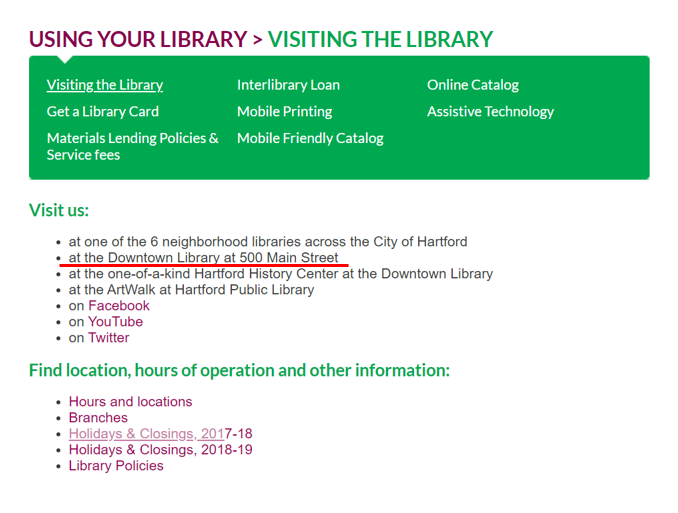
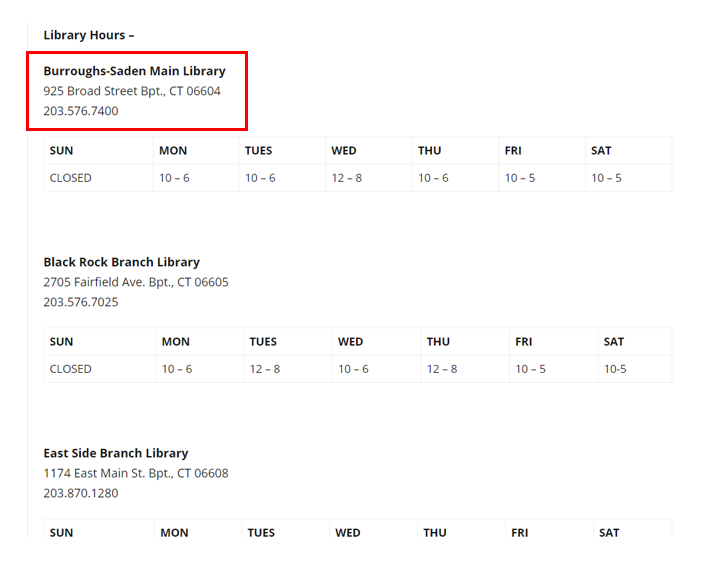
- Visit the library's website. You'll want to find the following information there:
- Name of the Library (usually the name of the town followed by public library)
- Library's address
- Library's phone number
- Library's contact email
- Library's website
- Go back to the town page and click on the "Edit Source" button next to "Libraries and Historical Societies."
- Enter the information that you got from the library's website in the following way:
'''NAME OF LIBRARY'''<br>LIBRARY STREET ADDRESS<br>TOWN, CT ZIP CODE<br>TELEPHONE NUMBER<br> Email: [mailto:libraryemail libraryemail]<br>[libraryurl Website]
So, for the Darien Library my code would look like the following:
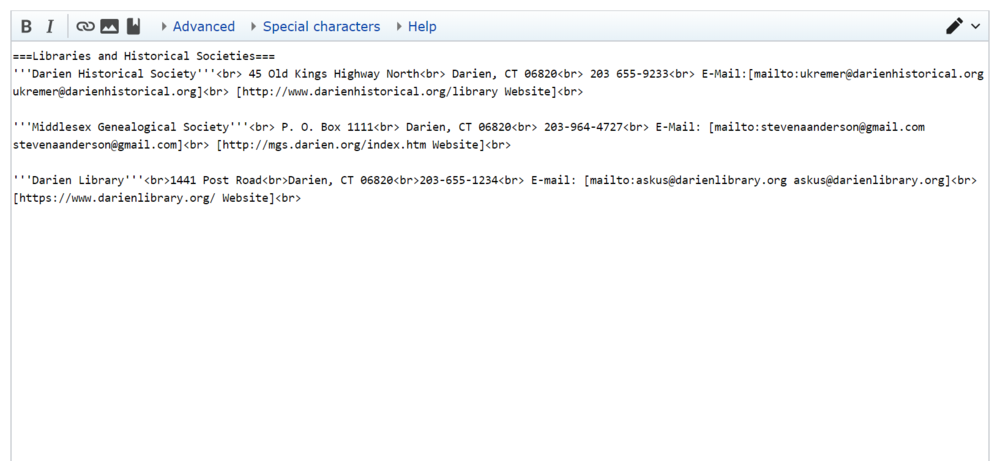
'''Darien Library'''<br>1441 Post Road<br>Darien, CT 06820<br>203-655-1234<br> Email: [mailto:askus@darienlibrary.org askus@darienlibrary.org]<br>[https://www.darienlibrary.org/ Website]<br>
My code after these steps should look like the following:
- Once you have added your public library to the town page, click "Show preview" to make sure the page looks correct. If everything looks good, proceed to the next steps; if something looks wrong, fix it before moving on.
- Type "Updating Libraries and Historical Societies" into the Summary box and press "Save changes." The finished section should look something like the following:
- Go back to the task list and place the date that you finished the section in the "Date" column. Move onto the next town and repeat the process.


